
Free archive guide
How to search Chronicling America for an ancestor
Search Chronicling America's free historic newspapers for family history. Check coverage, try name variants, browse issues, and save clear citations.
On this page
- What the collection covers, and what it does not
- Check coverage before you search a name
- Open Advanced Search and choose Pages (Full Text)
- Choose a search mode deliberately
- Narrow with place and date, then with facets
- A fictional search set up from start to finish
- Search the words of the period
- Browse issues when the search runs out
- Save the page with a citation you can trust
- When Chronicling America does not have your paper
- Check each result before drawing a conclusion
- Try a Chronicling America session this week
- Sources
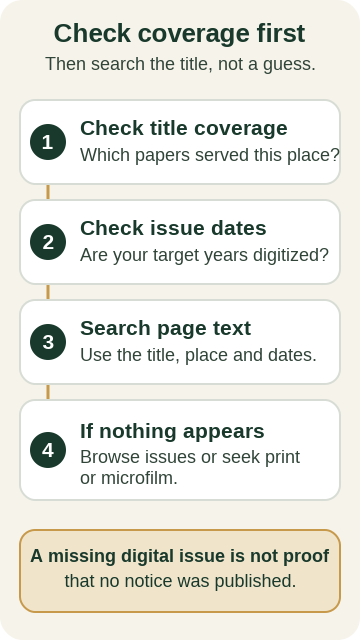
Check coverage first: filter the Library guide to browsing digitized titles by state, check years, then search Pages by place and date.
Chronicling America is the Library of Congress's free collection of digitized historic US newspapers. For a family historian it is a useful free first stop before paying for an archive, but its search behaves differently from a general web search, and its coverage is selective. Most disappointing searches come from one of two problems: the newspaper or years you need are not in the collection, or the search was set up in a way that hid the page.
Key collection and search details were rechecked on 17 November 2026 against the Library's current overview, FAQ and search guides. Site controls can move, so follow the Library's current guidance if a label differs.
What the collection covers, and what it does not
The Library's current collection guide says Chronicling America contains millions of digitized pages published through 1963 from all 50 states, the District of Columbia, Puerto Rico and the U.S. Virgin Islands. Pages are selected by state institutions, and the FAQ explains that not every issue or period is selected or available. A state being represented does not mean your ancestor's title or target year is included.
In practice, this means your ancestor's town paper may be present for a decade and absent for the years you need, or absent altogether while a neighboring county's paper is present. The Library adds pages regularly, so recheck the title and issue list before assuming a previously recorded gap is unchanged.
The collection is selective, so an issue missing from the digital title list does not by itself tell you whether the newspaper printed it. Check the title's available issues and seek a surviving print or microfilm copy before treating a gap as evidence that no notice appeared. "Not present in this digital collection" and "not published" are different conclusions.
Check coverage before you search a name
The All Digitized Titles tab lets you filter by state, ethnicity and language. Each title lists its publication years, available issue count and earliest and latest issue in the collection. You can download the list as a spreadsheet, or use the map to open titles published in each place.
For family history, make a short coverage note before searching. For each paper that served your ancestor's county, write down the title, the place of publication, the earliest and latest issues digitized and the number of issues. If the paper was a weekly running for twenty years but only a few hundred issues are present, there are gaps. Open the title's issue list and look at your years.
Keep the same note for any other archive or microfilm you check later, so that an empty result in one place is not mistaken for an absence everywhere.
Open Advanced Search and choose Pages (Full Text)
Start with the Library of Congress current guide to Chronicling America, which links to the collection. The current FAQ says Advanced Search is on the Collection Items page and can be expanded if needed. The Library's 2025 search walkthrough describes the route from the collection page. Interface labels can move, so follow the current on-page names.
Advanced Search offers three things to search. Titles searches the names of newspapers, not the words inside them. Issues searches the full text but shows results grouped by issue. Pages (Full Text) searches the full text and shows each matching page with your words highlighted, which the Library recommends for full-text searching. For family history, use Pages (Full Text) almost every time. Searching Titles by mistake is a common reason for getting newspaper names instead of articles.
If results are grouped at the issue level, switch the display to Pages. The Library explains that an issue-level result can link to the matching pages.
Choose a search mode deliberately
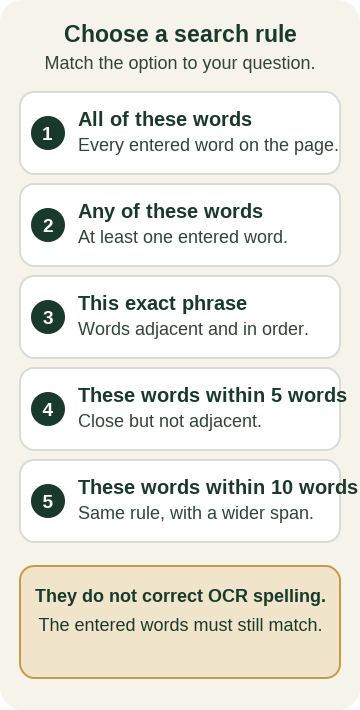
Quotation marks are not the main way to control this search. Instead, Advanced Search has a drop-down menu with five options, which the Library's tips explain with examples:
- All of these words requires every word somewhere on the same page. Good for a surname plus a town, which may not be near each other.
- Any of these words returns pages with at least one of the words. Good for trying several spellings at once, such as
Courtenay Courtney Courteney, with a narrow date range. - This exact phrase requires the words next to each other in order. Good for set phrases such as
card of thanks. - These words within 5 words of each other and within 10 words require the words to be near each other but not adjacent.
For a name with a middle initial or extra word, search the distinctive parts together and leave the middle word out. For example, search John Booth with These words within 5 words of each other. The Library's 2025 search tips demonstrate this with the printed form "John Wilkes Booth" and OCR (optical character recognition, the machine-generated text layer) readings such as "John likes Booth" and "John Wilket Booth." Because the query asks for "John" and "Booth," it does not require the middle word. The two entered terms still need to be recognized by OCR. Proximity cannot fix an OCR error in a required term; try that spelling separately or include a variant in Any of these words with a narrow date range.
If punctuation, accents or spelling variants may affect a query, try a plain-letter or alternate spelling as a separate search. Then compare the printed page and keep its spelling in your notes rather than silently correcting the OCR.
Narrow with place and date, then with facets
In Advanced Search you can limit by state, county, city and title, and by start and end dates. The tips explain that choosing a state limits the title list to that state's papers. You can also limit to front pages only. That is rarely the right choice for family history, because local notices often appeared on inside pages.
After a search, facets let you narrow further without starting again: by title, date, state, county, city, ethnicity, language, subject and page. The ethnicity and language facets help when your family read a community paper; our guides to historic Black newspapers and immigrant-language newspapers explain why a filter should be a starting point rather than the whole search. If the results page offers sorting, date order can help you follow a person or event through time.
Remember what a place filter means. It limits by where the newspaper was published, not by where a person lived. A paper in the county seat may report people from every township, and a person may appear in a neighboring county's paper.
If a search times out or warns that some results may not be displayed, narrow the date range or split the search into smaller runs before drawing a conclusion.
A fictional search set up from start to finish
Everything about the person in this example is invented: the name, the county, the paper, the dates and every result described. It shows how to configure a search, not what the collection contains. No result described here exists in Chronicling America.
Suppose you are looking for Mabel Courtenay, a schoolteacher in an invented place called Lowther County between 1905 and 1912, in a state whose papers are partly digitized. You want any mention of her teaching or of her marriage.
First, the coverage check. In All Digitized Titles, filtered to the state, you find two invented papers serving Lowther County: the Lowther Banner, digitized from 1898 to 1910, and the Lowther County Times, digitized from 1911 to 1922. Together they cover your window, with a change of paper in 1911. You note this, because a search limited to one title would miss half the period.
Next, the search. You open Advanced Search, choose Pages (Full Text), set the state and select both titles, and set the start date to 1 January 1905 and the end date to 31 December 1912. You type Courtenay teacher and choose These words within 10 words of each other.
Suppose this returns three pages. Two describe a Miss Courtenay engaged to teach at a district school. The third is a different Courtenay, a farmer, whose name happens to fall near "teacher" in a list of school board members. You save the first two and note the third as a false match.
Then the gap. Nothing appears for 1910 to 1911. Before concluding anything, you open the Banner's issue list and find that most issues from 1910 are marked not digitized, and the Times begins in mid-1911. Your result for those years is "not searchable here", not "no mention". That is the point at which to look for microfilm.
Search the words of the period
Search the language a notice may have used, as well as the name. A marriage might be described as "married", "wedded" or "nuptials". A death might be "died", "funeral" or "late of". A move might be "removed to" or "left for". Historical place names can also be useful.
Searching the event language with a place, rather than only a name, is one of the best ways round OCR errors. Our guide to searching when OCR gets names wrong explains this approach in more depth, along with building a short list of name variants.
Browse issues when the search runs out
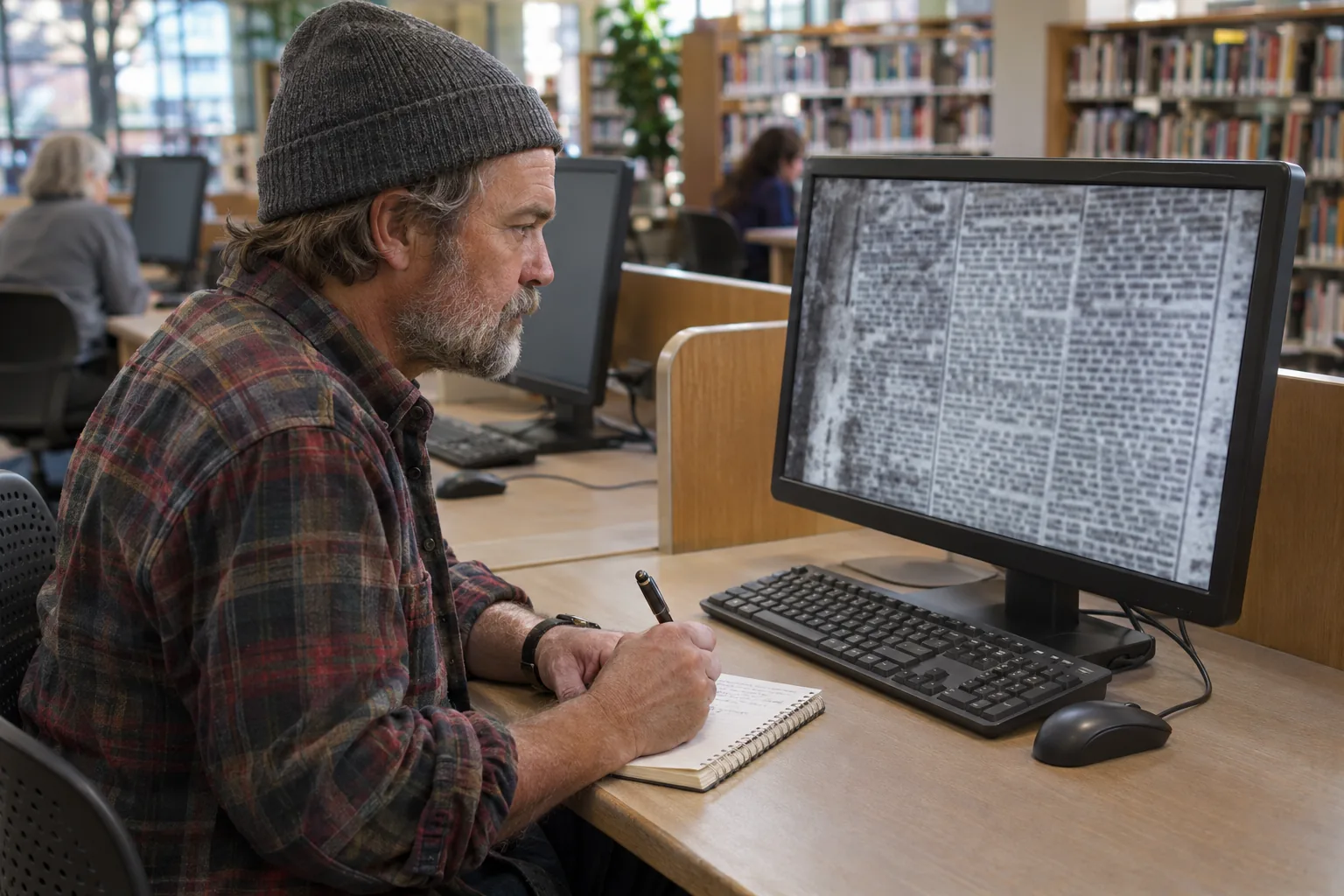
The FAQ explains that searchable text is generated by OCR and may not be accurate. A name can be on the page and still not be findable. When you know the title and roughly when something happened, browse.
From a title's record, open its digitized issues and go to the date. Read the local news pages for the week of the event and the week after. Once you know where a paper put its local columns, legal notices or court news, you can browse those pages quickly across many issues.
Use the page viewer's zoom and navigation controls to inspect the image. Where available, save the full page image or PDF; keep OCR text as a search aid, not as a substitute for the printed page.
Save the page with a citation you can trust
The Library's current citation guide explains that "About this Newspaper" and "About this Item" pages offer a Cite This Item button with Chicago, APA and MLA formats. It also shows how to link directly to a specific page image. Treat a generated citation as a starting point and check it against the page you viewed.
For each page you use, record the newspaper title, place, issue date, edition if any, page number, the page's URL, and the date you viewed it. Download the full page image rather than only a crop, so the masthead and date stay with the item.
The Library believes its Chronicling America newspapers are in the public domain or have no known copyright restrictions. Its current guidance says U.S. newspapers published more than 95 years ago are in the public domain in their entirety, but newer pages may contain third-party copyrighted material. The Library places responsibility for independent rights assessment and any necessary permissions on the person reusing the item, so check its rights and reproductions guidance before republishing a page image.
Keep the downloaded image and your citation together under a file name that includes the title, date and page, so you can find both later.
When Chronicling America does not have your paper
If your title or years are missing, there are free and library routes before paying for anything. The FAQ explains that readers can suggest a title through the National Digital Newspaper Program awardee for the newspaper's state.
Meanwhile, look for a state's own digital newspaper project, a library database you can use with a library card, or microfilm. Our guide to free and library newspaper access covers those routes in detail.
The Library also offers help. Its tips point to the Newspaper and Current Periodical Reading Room's Ask a Librarian service for questions, and the FAQ says errors in page numbers, page order or issue dates can be reported through the Library's question form.
Check each result before drawing a conclusion
A few mistakes come up again and again.
A highlighted name is not a finding. With All of these words, the surname and the town may be in unrelated items on the same page. Read the whole item before you record anything, and if the name is common, use our guide to finding an ancestor with a common name to keep candidates apart.
Search results are not a count of evidence. The same notice may appear in several issues, or in several papers that copied it. Count items, not hits.
A place facet describes the newspaper, not the person. A Kansas paper can report a visitor from Missouri.
No result does not mean no mention. Check whether the issues exist, whether the paper is the right one, and whether you searched page text.
Try a Chronicling America session this week
Choose one ancestor, one county and a span of up to ten years.
Open All Digitized Titles, filter to the state, and list every title from that county with its earliest and latest digitized issues. Write down which of your years are covered and by which titles.
In Advanced Search, choose Pages (Full Text), select those titles and your date range, and search the surname with one distinctive word such as the town or an occupation, using within 10 words. Then try the surname with a name variant using Any of these words.
Open each result and read the full item. Save the page image and the item page's citation for anything relevant, and note false matches so you do not reopen them.
For any year in your span with no digitized issues, write "not in Chronicling America" in your notes and look up whether a state project, library database or microfilm holds that paper. If you found nothing in covered years, browse the local news pages for the week after one known family event, such as a marriage or death, to see whether the paper reported it.
Sources
- Library of Congress: Chronicling America, about the collection
- Library of Congress: Chronicling America frequently asked questions
- Library of Congress: Chronicling America search tips
- Library of Congress, Headlines and Heroes: Tips for searching in Chronicling America (January 2025)
- Library of Congress, Headlines and Heroes: How to browse all digitized titles in Chronicling America
- Library of Congress: Finding citations and linking to images and highlighted text